Follow up and send a reminder
When a link has waited long enough, its card turns amber. Remind writes the reminder for you, with the same link.
When a link needs following up
A link with no answer is flagged once it has waited the number of business days set under Settings › Scheduling › Follow up (Flag after, 2 unless you change it). Its card under Active turns amber with a FOLLOW UP badge, and it is listed on Home under Follow up.
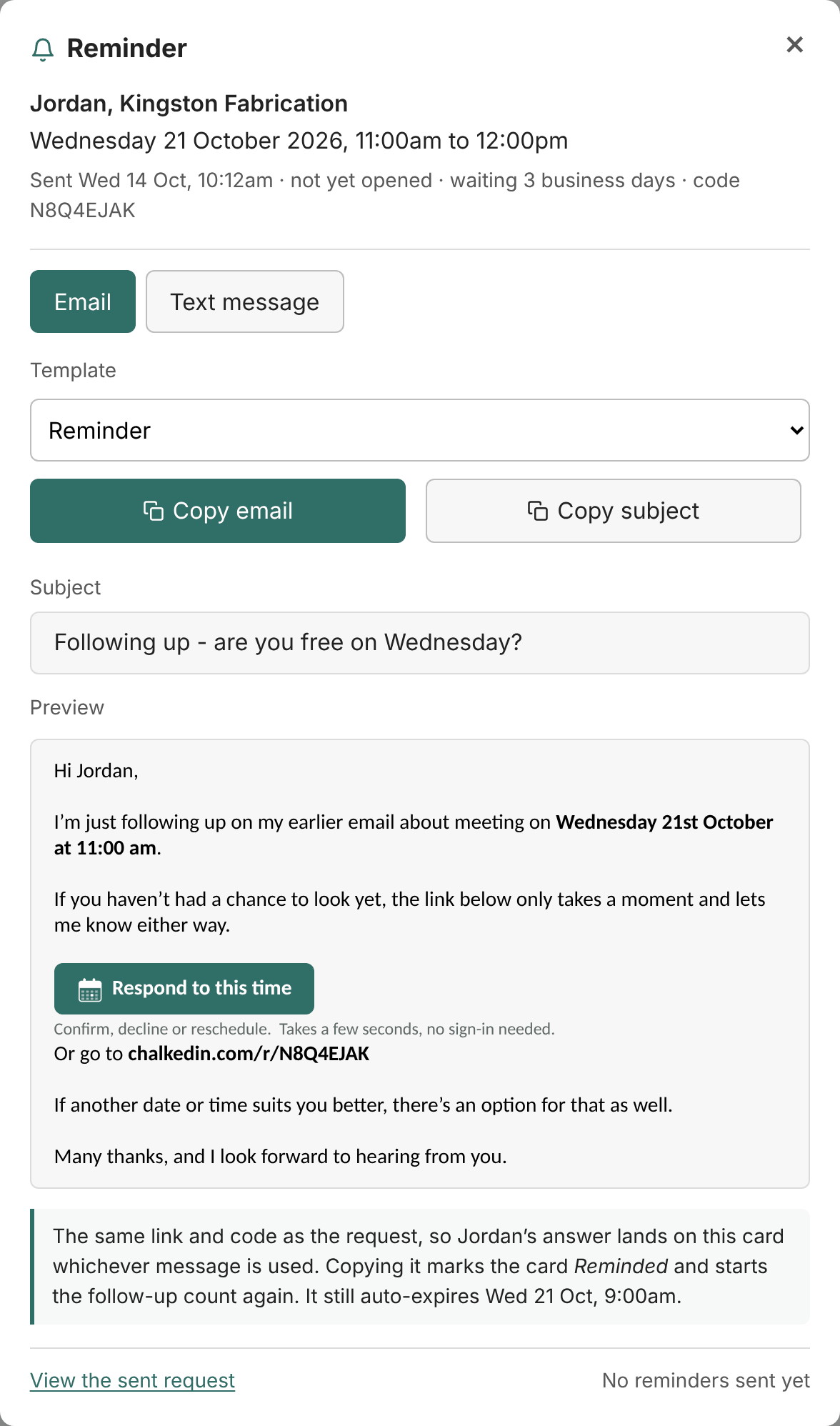
Send a reminder
- On the card under Active (or the entry on the Calendar), press Remind.
- Choose a reminder template: Reminder, or Final reminder for the last nudge. It carries the same link and code, so the answer lands on the same card whichever message they use.
- Press Copy email (or copy the text message) and send it from your own email or phone, as with the first one.
Copying it marks the card with a blue REMINDED badge and starts the follow-up count again, so it turns amber once more if the same number of days passes with no answer. The link’s auto-expiry doesn’t change.
Send the original again
View shows the request exactly as it went out, the email and the text message, ready to copy and send again. Useful when a customer says they never got it.
Just the link
Copy link copies the link on its own, for a chat message or a reply in an existing thread.
Reminder templates
Reminders have their own group under Templates, for email and for text message. They can use the [reply by] handle, which reads as the moment the link stops taking answers: its auto-expiry, or the proposed time if it has none.
Still stuck?
In Chalkedin, open Help and feedback from the menu under your initials (More on a phone) and tell us what happened, or email [email protected].
Checked against Chalkedin on 20 October 2026.