Book the meeting inside the text or email you're already sending
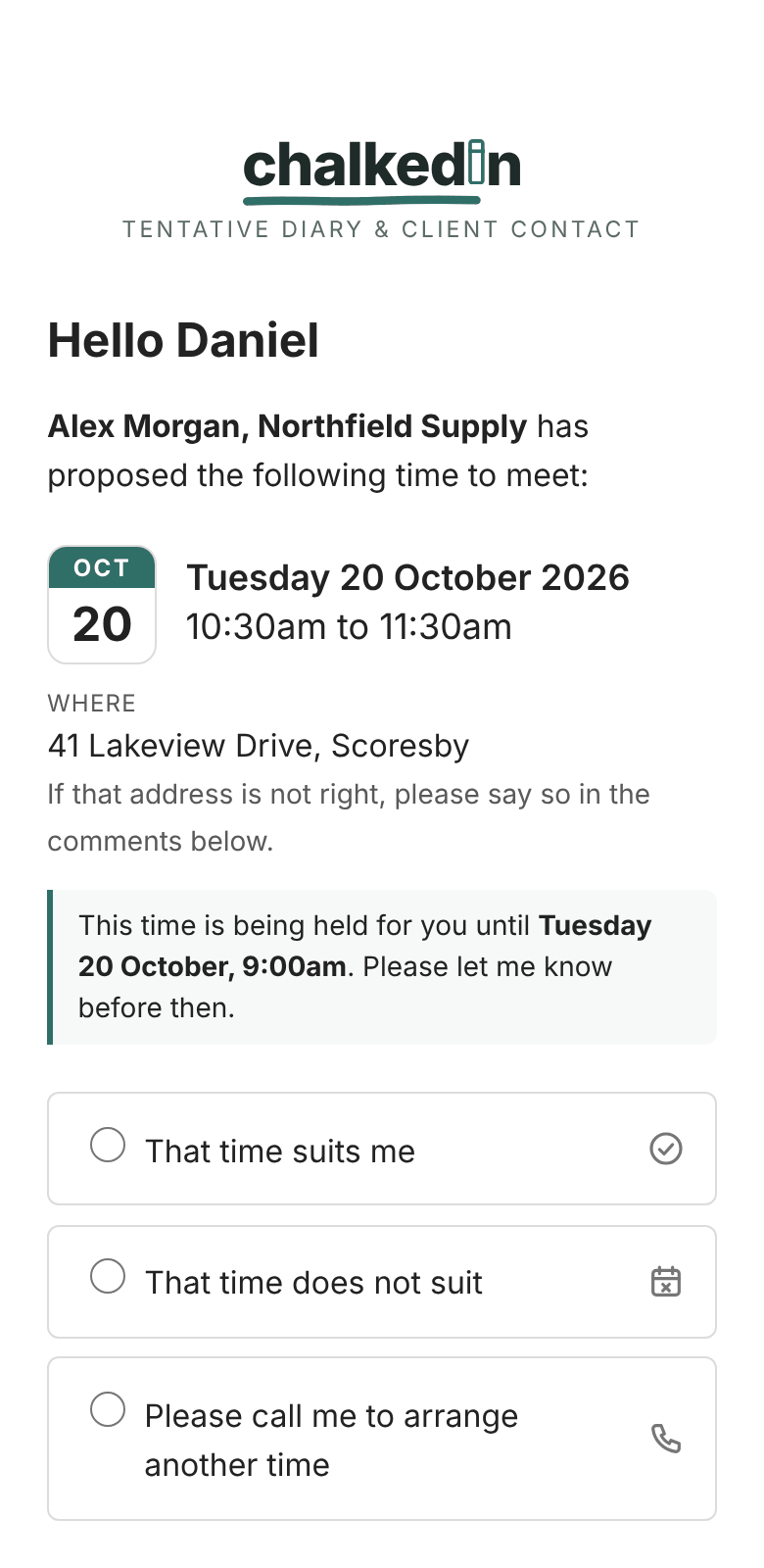
Chalkedin turns a proposed time into a link your client answers in one tap: yes, no, another day would suit, or please call me. Send it by email or text message, as yourself. Every reply lands on one page with your week beside it, so you can see what is settled, who is due a reminder and what needs a new time, without a calendar invite landing uninvited in anyone's diary.
The beta is free for at least three months, with no card to give. Works with Outlook, Gmail, the Messages app on your phone and anything else you send from.
- No sign-up for your clientsOne link, answered in a tap
- Email or text messageSent from your own address or phone
- No double bookingsBooked and blocked times are greyed out
- From A$2.80 a monthFree for at least three months in the betaA$2.80, billed in Australian dollars · change currency
Meeting scheduling that does not put anything in anyone's diary uninvited
A calendar invite is a commitment written into somebody else's week before they have agreed to it. That is why so many of them are quarantined, ignored or resented. A proposal is a question, and a question gets answered.
Propose a time
Type a first name and pick the day, or click a free time on your calendar. Times already offered, accepted or blocked out are greyed out, so you cannot double-book yourself.
Send it as yourself
Chalkedin writes the email, with a Respond button in it, or the text message, from your template. Paste it into Outlook or Gmail, or open it in Messages, and it goes from your own address or number.
They answer in one tap
That time suits, it does not, or please call me. If it does not, they tick the days and half days that would.
You know straight away
The answer arrives in your inbox and on Home, badged and ready: accepted into your week, or one click from a new time. No answer yet? A reminder goes out on the same link.
One link, an honest answer
Your client opens the link and sees the time you have offered. They can confirm it, decline it, or tell you which days would suit better, and that last one is the answer that saves the week. If you have their number, they can ask you to call instead.
Nothing for them to sign up to
No account, no app, no password. The people you are trying to get time with are exactly the people who will abandon a booking page that asks them to register first. Chalkedin asks them for one click and nothing else.
It survives the mail gateway
Corporate filters rewrite links, strip them, or fetch them before anyone has read the message. So opening a link never counts as an answer, and every invitation carries a short code in plain text that can be typed in if the link is mangled.
Scheduling features built around getting an answer
Chalkedin does one job: it gets a time agreed with somebody who is busy. Everything in it is there to make the asking quicker, the answer easier to give, and the week easier to read. These are the real screens.
Home
Open it and see who to follow up today
Home puts the few things that need a decision at the top: the client who asked for another time, with a Reschedule button beside them; the one who asked you to call; the offer about to run out; the one that has waited as long as you allow and is worth a reminder. Beside it, the next seven days in order, settled and still open, and under both, how the month is going.
- Follow up, Next 7 days and the month so far on one page
- A red dot with a count for replies you have not opened
- A guided set-up for a new account, and a welcome until you are done

Email & SMS
By email or text message, sent as yourself
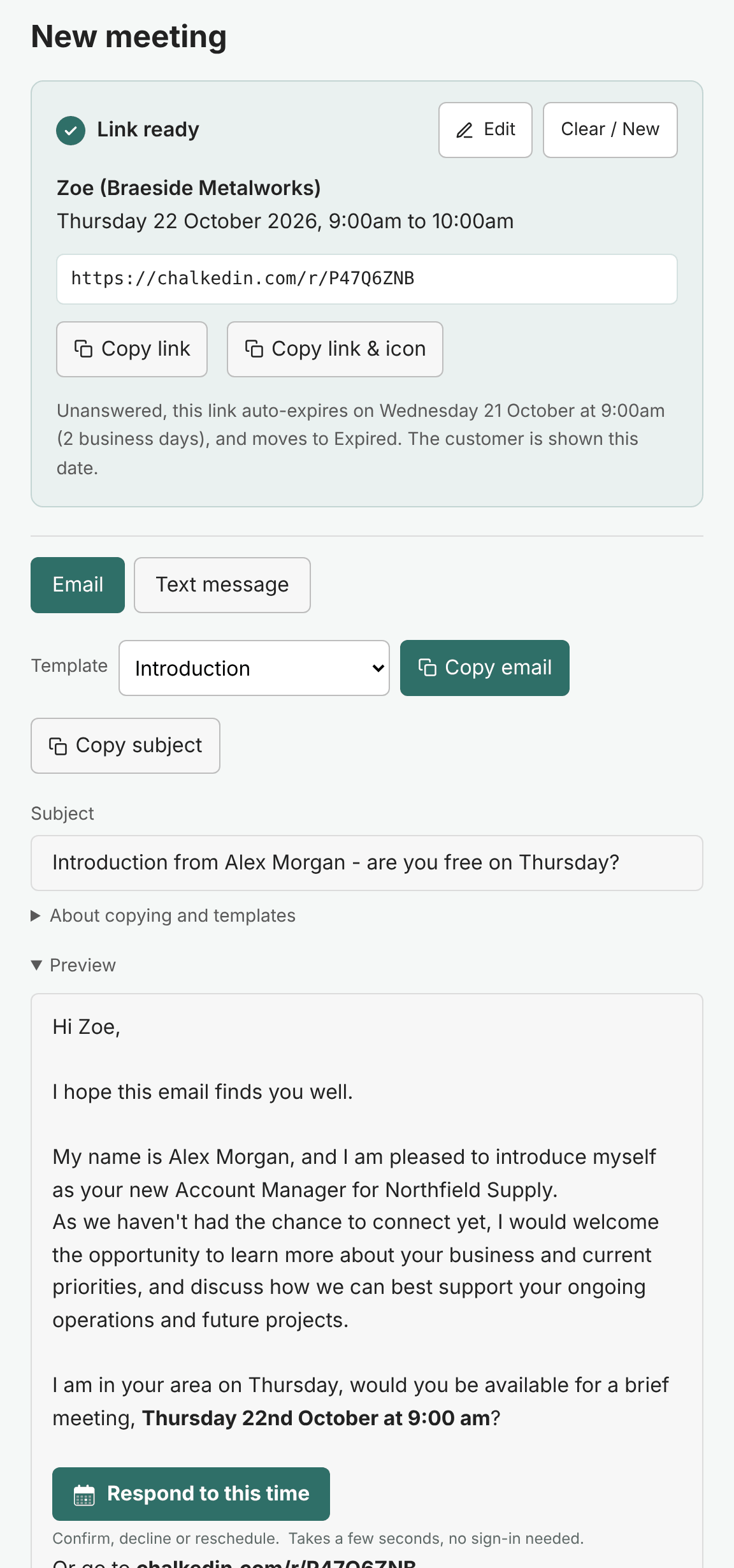
Chalkedin writes the invitation from your template, with a clear Respond to this time button and a short code already in it. One click copies the email into Outlook or Gmail with its formatting intact, or opens the text in the Messages app on your phone, and it goes from the address or number your client already knows.
- Email, text message or both, chosen once in Settings
- A button in your email that invites the click, in your chalk colour
- SMS templates with a running character count
- Templates listed with the one you used last at the top
- Edit the link after it is made, or start a new one in a click
Follow up & reminders
No answer yet? Remind them in two clicks
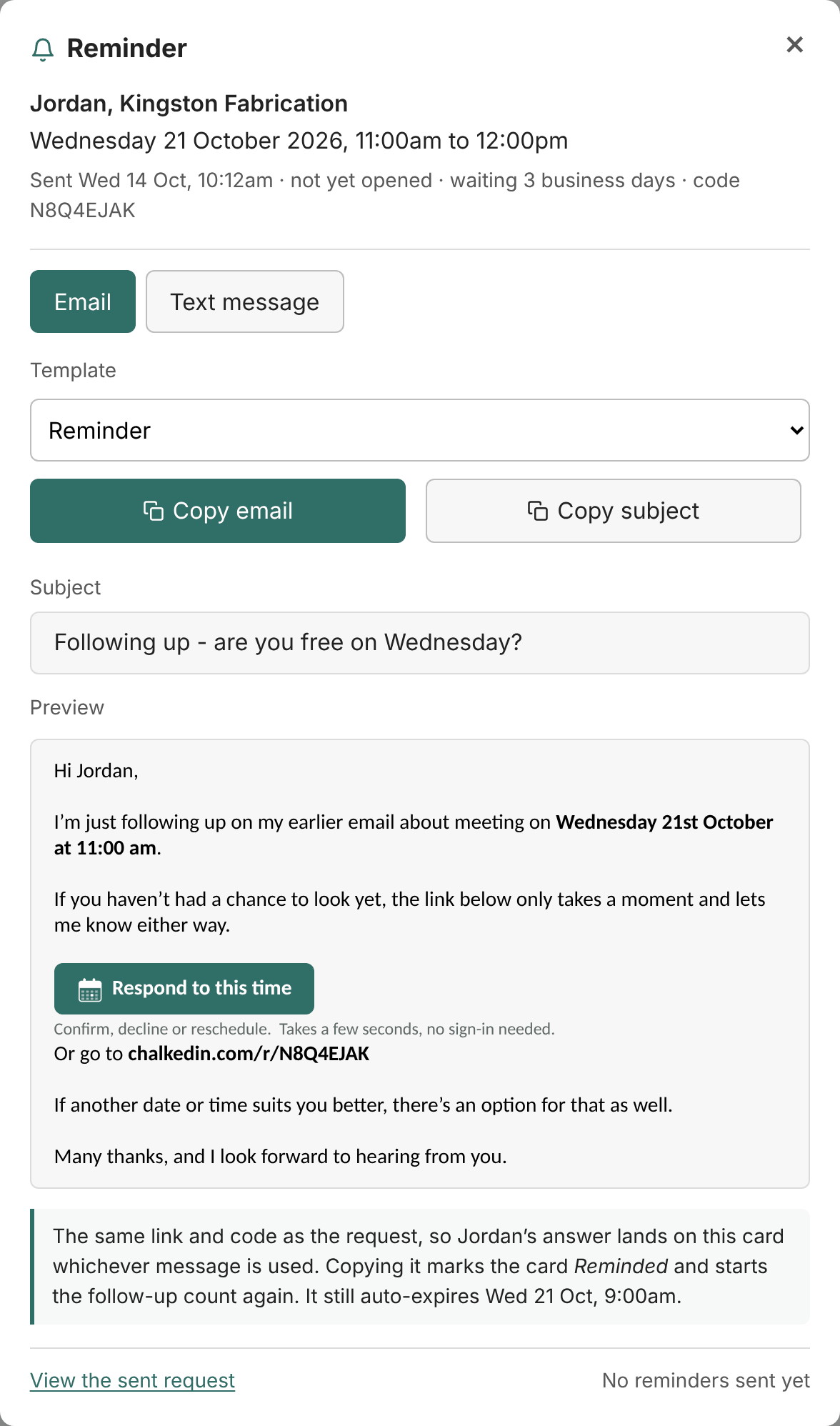
Every request still waiting is listed under Active, with when it was sent and opened and when it expires. Once it has waited the business days you set, the card turns amber and Remind is the button to press. Chalkedin writes the reminder from your own template, by email or text message, with the same link and code, so the answer lands on the same card whichever message they use. Need the original again? View shows the request exactly as it went out, ready to copy and send once more.
- View, Remind and Copy link on every request still waiting, and on the calendar
- A blue Reminded badge, with when it went and how
- Flagged to follow up after the business days you choose, counted again from each reminder
- Reminder and final reminder templates for email and text message, saying when the link closes
Calendar
Your whole week, tentative and confirmed, in one view
The Calendar tab lays out every time you are holding for a client and every reply you have had, each in its own colour, with offers still awaiting an answer dashed. Click an empty time and a new request opens on it; click an entry to see it, edit it, send a reminder or cancel it. One View button switches between week and month, and between business hours and the full day for the odd early start.
- Block out the times you are never free, such as a weekly team meeting
- Add your Outlook, Google or Apple calendar to see its busy times here
- Share your Chalkedin calendar back to it through a private link
- Laid out as a day at a time on a phone

Double-booking guard
No double bookings, even on a busy day
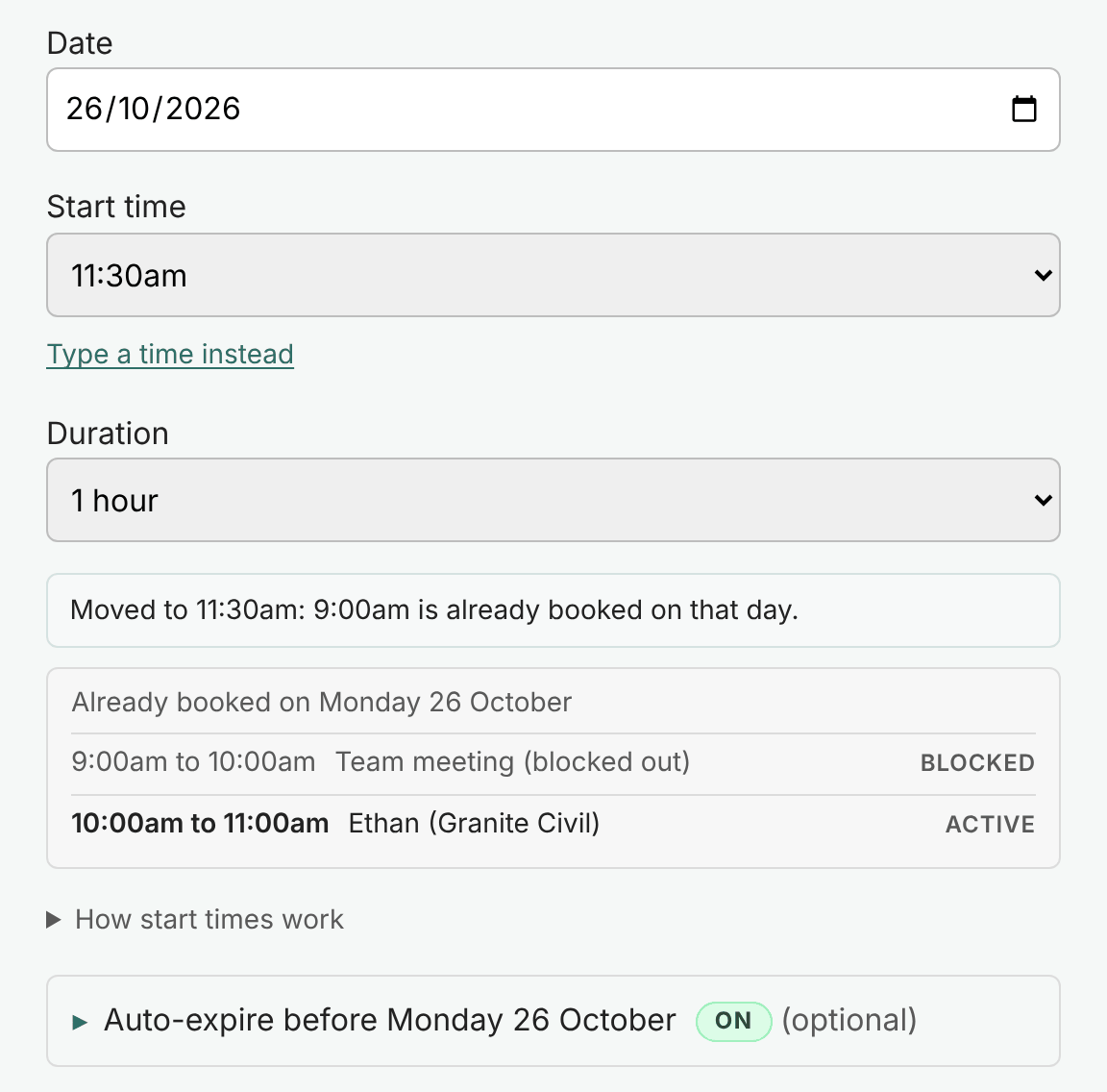
Pick a day and Chalkedin lists what is already on it: offers still out, times accepted, and times you have blocked out. Start times that would clash are greyed out, and if the time you wanted is taken it moves to the next free one and tells you so. A clash is refused unless you say to book it anyway.
- Offered and accepted times both count as booked
- Start times follow the business hours and days you set
- A time is freed the moment an offer is declined or expires
Replies & rescheduling
When the time does not suit, rescheduling takes one click
A client who cannot make it ticks the days and half days that would suit, and can add a note. Their reply arrives marked Reschedule, with a button that opens a new request already filled in, on the next date and time that matches. A client who would rather talk asks for a call, and you can note what was agreed on the reply itself.
- Every reply badged: accepted, declined, reschedule or call requested
- Your own comment on a call request, or on a reply you mark by hand
- Active, Replied and Expired in a side menu, with a name search and a Sort button

More scheduling features, on every plan
There are no add-ons and no feature tiers. Whichever plan you are on, you have all of it.
Meetings, appointments or inspections
Tell Chalkedin what you book and every page, email and text message uses your word for it: meeting, appointment, inspection, or a word of your own such as site visit.
In person, at your place or online
Go to them, with their address on the request. Have them come to you, with your location and a map link on their page. Or meet online, on Microsoft Teams, Zoom or Google Meet, with the platform named and your joining link shown.
Offers that expire by themselves
Say how many business days an offer stays open, and a badge on the form shows whether it is on. Your client is told when the hold ends, an offer nobody answers lapses and frees the time, and the expiry always falls inside your business hours.
For info@ and sales@ addresses
Do not know who will read it? Tick No name and every greeting adjusts, from "Hi Jane," to plain "Hi,". The page can ask whoever answers for their name, so you still know who said yes.
Templates in your own words
Keep as many email and text message templates as you like: an introduction, an online meeting, a general address, a reminder. The one you used last comes first, and the name, the time, the place and the link drop in by themselves.
Replies you can read at a glance
Each answer arrives as a tidy email: a coloured badge, the details in a table and a button straight back to the request, or to a new time when they asked for one. Plain-text mail is laid out neatly too.
Notes that stay with the reply
Mark a reply that came by phone as accepted or declined, add a line on what was said, and edit it later. Your notes are encrypted, never shown to the client, and cleared with the record.
Statistics that show what works
How many requests get an answer, how many of those are a yes, how quickly people reply, and which days and times are accepted most. For this month, last month, the last three months or the year.
Built for site visits, not just calls
Ask what protective equipment the site requires as part of the same request: safety glasses, safety shoes, hi-vis or anything else. The answer arrives with the confirmation, so you turn up with the right boots.
Your time zone, your date style
Set your time zone, whether dates read 9 October or October 9, and whether your week starts on Monday or Sunday, and Chalkedin follows, wherever you work.
Made for your phone as well as your desk
Nothing to install. On a phone, Home, Calendar, a round New button, Requests and More sit along the foot of the screen, and every button is sized for a thumb. Pages are light and quick to load.
Sign in with a passkey
Use your fingerprint, face or PIN instead of typing a password: Windows Hello on a PC, your phone's own screen lock, or a password manager. Passwords still work, and only the public half of a passkey is kept, so there is nothing worth stealing.
Your chalk colour, your calendar icon
Choose a chalk colour and every page is drawn in it, the ones your client opens included, down to the privacy policy they open from your link. The button or icon beside the link in your emails comes in a choice of styles as well.
Set up in a few minutes
A new account is walked through it: about you, where replies go and what you book, then a few questions on hours, delivery, expiry and the rest, each one you can skip. Every answer lands in Settings, and you can run the set-up again whenever you like.
Help and feedback, built in
Send an idea, a problem or a question from the account menu, with a screenshot pasted straight in. It goes to the people building Chalkedin, the reply comes back by email, and photos lose their hidden location details on the way.
Who Chalkedin is for
Anyone whose week is built out of appointments they have to ask for — and who would rather ask from their own inbox or phone than hand their client list to a booking platform.
Sales reps & BDMs
Plan the work week beside the email you already send
A territory is a list of people you need time with. Propose times to twenty of them in an afternoon, in person or online, watch the answers land, and let the confirmed ones settle into the week while the rest stay visibly open. Your company email and your client list stay exactly where they are.
Small business & trades
Quote, book and confirm without the phone tag
Text a customer a time for the quote or the job, let them take it or move it, and get a written answer you can point at later. No receptionist, no booking widget on a website you do not have, and no monthly fee for software that does forty things you will never use.
Consultants, inspectors & field service
Site visits and inspections without the wasted trip
Call it an inspection, a site visit or an assessment, and every page says so. The address is on the request, the site's safety requirements come back with the yes, and records clear themselves on the schedule you set, so nothing accumulates that you would later have to account for.
Clinics, studios & offices
Appointments at your place, confirmed in writing
When clients come to you, set your location once. Every appointment request names the place and carries a map link, and an offer that is not answered lapses by itself, so the time goes back on the books.
Privacy is the design, not a policy page
Most scheduling tools want your contacts, your calendar and your mailbox before they will do anything at all. Chalkedin was built the other way round: it asks for as little as it can get away with, because data that was never collected cannot be lost.
- Client email addresses are not collected unless you ask for them. The invitation goes out through your own mail program, which already has the address. One you choose to collect, or one a client gives for a calendar invitation, is encrypted where it is stored and cleared on the schedule you set.
- No mobile numbers are kept. A text message is written here and sent from your own phone, so your client's number never passes through Chalkedin.
- No sign-in to your mailbox or calendar. Chalkedin never signs in to your Outlook or Google account, so it cannot read your mail or your contacts. It sees no calendar at all unless you add one, and from a calendar you add it keeps only the times you are busy: not what an event is, who it is with or where. Removing it deletes them, along with the encrypted link that let it look.
- Link contents are encrypted. The name and company in a link are encrypted, not merely encoded, so they cannot be read out of the address bar by anyone the link is forwarded to.
- Safe to use at work. One person can use Chalkedin in a corporate environment without passing on the company's customer data. Nothing is installed, nothing signs in to your work mailbox, calendar or CRM, and no contact list is uploaded. A first name and the time you propose are all it needs; your client's email address and mobile number stay in your own mail program and phone. Adding a calendar is optional and off to begin with, and a work calendar can be added as busy times only, so the times are all that leaves your company.
- Records clear themselves. Retention is a setting, not a promise, and old records are cleared on a schedule without you having to remember.
- Server records stay short. The web server notes the pages asked for, but not the part of an address after its question mark, where a long link carries its encrypted details, and it clears those records within four weeks.
- Emails leave no copy behind. Reply notifications and account emails are sent through Amazon's servers in Sydney, which deliver them without keeping what they say.
- Opening a link is not an answer. Mail scanners open every link in an inbound message, so a reply only counts when a person deliberately gives one. Only the first time a link is opened is noted, with the browser it was opened in.
- No trackers on this page. No analytics, no fonts from elsewhere, no cookie until you sign in. That is why there is no consent banner in your way. Signing up asks only for your name, your email address and, if you like, your business.
Pricing
Beta open: free for 3+ months
Every plan is the whole of Chalkedin, with no limit on meeting requests or templates. The plan price for each user comes down as your team grows. Teams can add white label to put their own name in front of their clients, and on Corporate their own web address as well. Prices are in Australian dollars and include any GST that applies, and every payment comes with an invoice. The beta is free while we test, and the plans open after it.
Chalkedin is billed in Australian dollars. The amounts shown in are approximate, converted at the Reserve Bank of Australia rate for 5 November 2026 (). Your card provider or bank sets the rate you are actually charged, and may add a foreign transaction fee. Source: RBA 2026
Beta Open now
For one person, while we test.
Free for 3+ months
3 months minimum, from the day your account opens
- Fully working: every feature in Individual, ready for real clients today
- No card needed, and nothing charged when it ends
- Help and feedback straight to the people building it
- Carry on with Individual afterwards, if you choose
Beta, but not half-built. Everything you do in Chalkedin works now. What we are finishing is polish: the look of a few screens, and the work behind the scenes for launch.
Name and email, then a password. About two minutes.
Individual After the beta
For one person.
A$25 / user / year
That is A$2.08 / user / month
A$25 a year per user, billed in Australian dollars
or A$2.80 / user / month, paid monthly
A$2.80 / user / month
That is A$33.60 / user / year
A$2.80 a month per user, billed in Australian dollars
- Unlimited meeting, appointment and inspection requests
- Email and text message delivery, with unlimited templates
- Home, the Calendar tab and the double-booking guard
- One-click rescheduling and offers that expire by themselves
- Reminders on the same link, flagged when they are due
- In person, at your location or online
- Your own calendar's busy times, and yours shared to it
- Statistics, site-safety questions and retention you set
- Chalkedin name on your client pages, in your chalk colour
Opens after the beta. Beta testers can carry straight on with it.
Business After the beta
For teams of 3 to 10 users.
A$22 / user / year
That is A$1.83 / user / month
A$22 a year per user, white label A$12, billed in Australian dollars
or A$2.45 / user / month, paid monthly
A$2.45 / user / month
That is A$29.40 / user / year
A$2.45 a month per user, white label A$1.35, billed in Australian dollars
- Everything in Individual, for every user
- A lower price for each user
- One subscription and one invoice for the team
White label · optional
+ A$12 / user / year
+ A$1.35 / user / month
Your logo and company colours on the pages your clients open, in place of ours.
Opens after the beta.
Corporate After the beta
For teams of 11 or more users.
A$20 / user / year
That is A$1.67 / user / month
A$20 a year per user, white label A$16, billed in Australian dollars
or A$2.25 / user / month, paid monthly
A$2.25 / user / month
That is A$27 / user / year
A$2.25 a month per user, white label A$1.80, billed in Australian dollars
- Everything in Business
- Our lowest plan price for each user
- One subscription and one invoice for the team
White label · optional
+ A$16 / user / year
+ A$1.80 / user / month
Your logo and company colours, and your links on your own web address.
Opens after the beta.
The beta is the whole of Chalkedin for one person, free for at least three months from the day your account opens. It is fully working from your side of the screen: making requests, sending them, your clients' answers, the calendar and the rest. What we are still doing is tidying up: the presentation, and the work behind the scenes to get ready for launch. It may run longer, depending on what testers find and how ready we are to launch. No card is needed, and nothing is charged when the beta ends unless you choose a plan. The plans above come live as the testing goes on.
Questions people ask
Do the people I invite need an account?
No. They open the link in your email or text message, see the time you have proposed and choose an answer. There is nothing to install, nothing to sign up for and no password to forget. That is the whole point: the person you are chasing is the last person who will tolerate a sign-up form.
How is this different from sending a calendar invite?
A calendar invite writes itself into somebody else's diary before they have agreed to anything, which is why so many arrive flagged or quarantined. Chalkedin proposes a time instead. Nothing lands in anyone's calendar until they have said yes, and they can decline or put up a different time in the same click.
How is Chalkedin different from a booking page?
A booking page asks your client to go to a website and choose from your open slots, which suits people who come looking for you. Chalkedin is for the other case, where you are the one asking for their time. You propose a specific time in an email or text message they were going to get anyway, and they answer in one tap, with nothing to browse and no account to create.
How is Chalkedin different from Calendly?
Calendly gives you a booking page: people come to it and book themselves into your open times, which suits someone who already wants the meeting. Chalkedin is for when you are the one asking. You propose one time in an email or text message from your own address or phone, and your client answers in one tap, with no page to browse and no account to make. There is a fuller comparison, with Acuity Scheduling and Doodle as well, in Chalkedin vs Calendly, Acuity Scheduling and Doodle.
Can I send a meeting or appointment request by text message?
Yes. Choose email, text message or both in Settings. Chalkedin writes a short message from your SMS template, with the link in it and a count that shows whether it fits in one SMS. You copy it, or open it in the Messages app on your phone, and it is sent from your own number. Chalkedin does not send the text itself, so your client's mobile number is never stored.
Does it work for appointments, inspections and site visits, not only meetings?
Yes. Settings asks what you schedule: meetings, appointments, inspections, or a word of your own such as site visit. The menus, the pages your client sees, the emails and the text messages all use it. You also say where it happens: at their place, at yours with a map link, or online.
Can I use it for online meetings on Microsoft Teams, Zoom or Google Meet?
Yes. Mark a request as online and your client is told so, along with the platform you name. If you use the same joining link every time, such as a personal meeting room, it is shown to them. Otherwise they are told the link will come with the calendar invitation you send once they have accepted. Chalkedin does not create the online meeting itself; you do that in your own calendar, as you do now.
How does Chalkedin prevent double bookings?
Every time you have offered, and every time that has been accepted, counts as booked. When you pick a day, Chalkedin lists what is already on it and greys out the start times that would clash. If you try to book over one anyway, it stops and asks first. A time is released as soon as the client declines, the offer expires or you cancel it. This covers what you have arranged through Chalkedin. Add your own calendar as well, and the times it has you down as busy are shown and checked in the same way.
What happens when a client asks for a different time?
They tick the days and half days that would suit, and can add a note. The reply reaches you marked Reschedule, with a button that opens a new request already filled in with their details, on the next date and time that matches what they asked for. You check it and send it. Which days and half days are on offer is up to you.
What if a client never answers?
You set how many business days an offer stays open. Your client is shown the date the time is being held until. Before then, a request that has waited as long as you allow is flagged to follow up, and a reminder is two clicks away. If the date passes with no answer the link expires by itself and the time is free to offer to somebody else. A client who opens an expired link can still ask you for a new time.
Can I send a reminder to a client who has not answered?
Yes. Press Remind on the request, under Active or on the calendar, and Chalkedin writes the reminder from your template, by email or text message. It carries the same link and code as the request, so whichever message your client answers, the reply lands in the same place. Copying it marks the request Reminded and starts the follow-up count again. There is a final reminder too, which says when the link closes. You send it yourself, as you sent the first, so it comes from your own address or number.
Can I send a request to a general address such as info@ or sales@?
Yes. When you do not know who will read it, tick No name and the email, the text message and the page your client opens all greet them without one: "Hi," in place of "Hi Jane,", or a greeting word you choose. The page can ask whoever answers for their name, and you can note the address on the request so you can tell it apart from the rest.
Can I block out times when I am not available?
Yes. Block out a time once, such as a weekly team meeting or a day off, and Chalkedin treats it as booked: it is drawn on the calendar and its start times are greyed out on New meeting. You also set your business hours and the days you work, and you can leave days and half days off the choices a client is given when they ask for another time.
Does Chalkedin work outside Australia?
Yes. Chalkedin runs in a web browser, so it works wherever you are. Settings has your time zone, whether dates are written day first or month first, and whether your week starts on Monday or Sunday, and your pages and messages follow them. The prices on this page can be shown in your own currency as a guide; billing is in Australian dollars.
Does it replace my calendar?
No, and it is not trying to. Your calendar holds what is confirmed. Chalkedin holds what is still tentative — the times you have offered and are waiting on — so your week is not a wall of provisional entries you have to remember the status of. It has its own calendar of offered and accepted times. If you want the two side by side, you can share your Chalkedin calendar with Outlook, Google or Apple Calendar through a private link, and Chalkedin can show the times your calendar has you down as busy. Both are optional, and Chalkedin never signs in to Outlook or Google Calendar. When a client accepts, you send the invitation from your own calendar as usual.
Can Chalkedin show my Outlook or Google calendar?
Yes, if you want it to, in two separate ways that are both off until you turn them on. You can share your Chalkedin calendar with Outlook, Google or Apple Calendar through a private link, so the times you are holding for clients sit in the week you already look at. And you can add a calendar to Chalkedin, which then shows the times it has you down as busy and checks them before you offer a time. From a calendar you add, Chalkedin keeps when each busy time starts and ends, and nothing else: not what an event is called, who it is with or where. It never signs in to your account, and removing the calendar deletes everything it read.
Can I use my own email address and signature?
Yes. Chalkedin builds the whole email — your wording, your sign-off, the link and a printed code — and copies it to the clipboard with its formatting intact. You paste it into Outlook or Gmail and send it as yourself, from your own address. Nothing is sent on your behalf.
What happens if a corporate mail filter strips the link?
Every invitation carries a short code printed beside the link. If a gateway rewrites or removes hyperlinks — and plenty do — the recipient can type the code in instead and land on exactly the same page.
What does Chalkedin store about my clients?
The name and company you type when you create a request, and the answer that comes back. An email address is kept only if you switch that on, or if a client you reached by text message gives one for their calendar invitation. Either way it is encrypted where it is stored. The time a link is first opened and the time it is answered are logged, with the browser and network address, to confirm a reply is genuine. Records are cleared on a schedule you set.
Is it safe to use Chalkedin at work, in a corporate environment?
Yes. One person can use it in a corporate environment without passing on the company's customer data, because Chalkedin is given so little. Nothing is installed on your computer. It never signs in to your work mailbox, calendar or CRM, so it cannot read your mail or your contacts, and no contact list is uploaded. The email is sent from your own Outlook or Gmail and the text message from your own phone, so your client's email address and mobile number stay where they already are. A first name and the time you are proposing are all it needs. Anything more, such as a company name or a surname, is a setting you control, and what is kept is cleared on a schedule you set. Adding a calendar is optional and off to begin with. If you do add your work calendar, publish it as busy times only: when each busy time starts and ends is then all that leaves your company, and it is all Chalkedin keeps in any case. If your employer has rules about outside tools, that is the list to show them.
Does Chalkedin work on a phone?
Yes. It runs in the browser, with nothing to install, and every page is laid out for a phone as well as a desk: making a request, sending the text message, reading the replies and the calendar. On a phone, Home, Calendar, a round New button, Requests and More sit along the foot of the screen, and the calendar shows a day at a time. Your clients answer on whatever they opened the message with.
Can I sign in with a passkey instead of a password?
Yes. Add a passkey under Account and sign in with your fingerprint, face or PIN: Windows Hello on a PC, the screen lock on an Android phone or iPhone, or a password manager such as 1Password. You can add one for each device, and remove any of them. Only the public half of each passkey is kept, so there is nothing that could be used to sign in as you. Your password still works, and nobody has to use a passkey.
What do beta testers get?
The whole of Chalkedin for one person, free for at least three months, counted from the day your account opens. Sign up from the Beta card under Pricing: we email you a link to choose your password, and you can be sending your first request a few minutes later. The beta may run longer than three months, depending on what testers find and how ready we are to launch. No card is needed, and nothing is charged when the beta ends unless you choose a plan. In return we ask for your honest feedback on what works and what does not.
Is the beta ready for real work?
Yes. From a user's point of view Chalkedin is fully working: making and sending requests by email or text message, your clients' answers, rescheduling, the calendar, templates and settings all work today, and beta testers use it with real clients. Calling it a beta means we are still tidying up: the presentation of some screens, and the work behind the scenes that gets us ready for launch. If you find something that is not right, Help and feedback goes straight to us.
How much does Chalkedin cost?
Individual is A$25 a year or A$2.80 a month. Business, for teams of 3 to 10 users, is A$22 a year or A$2.45 a month for each user. Corporate, for teams of 11 or more users, is A$20 a year or A$2.25 a month for each user. White label is an optional extra for teams, added to Business for A$12 a year or A$1.35 a month, and to Corporate for A$16 a year or A$1.80 a month, for each user. Prices are per user, in Australian dollars, and include any GST that applies. Paying by the year gives you three months free. Every plan has every feature. The beta is free for at least three months, for one person, and the plans open after it.
What is the difference between the plans?
Only how many people use it, and so the price for each. Every plan has the whole application with no limits on meeting requests or templates. Individual is for one person. Business is for teams of 3 to 10 and Corporate for teams of 11 or more, each at a lower price per user. Every plan shows the Chalkedin name on the pages your clients open, in the chalk colour you choose. Teams can add white label, which replaces it with your own logo and company colours, and on Corporate puts the links on your own web address as well. The beta is for one person, as Individual is, and the plans open after it.
How does my own web address work with white label on Corporate?
You choose an address under your own domain, such as meet.yourcompany.com, and add one DNS record pointing it at us. We issue the security certificate and keep it renewed, and from then on every link you send carries your address rather than ours. Corporate opens after the beta, and we will walk you through the record then.
Get the yes in writing, not in voicemail
Sign up for the beta and be one of the first in, free for at least three months while you tell us what you think.