Make a new meeting link
Every field on the New meeting page, and what each one does to the link your customer receives.
Press + New meeting at the top of any page, or the + in the middle of the bar on a phone. You can also click an empty time on the Calendar, which opens the same form with the day and time filled in.
Who it is for
- First name: always needed, because the email greets them by it. Writing to a general address such as info@? Tick No name instead. See Writing to a general address (No name).
- Company, and their Address or Email, appear only if you chose to collect them under Settings › Privacy. See What is kept about your customers, and for how long.
- Do you have their phone number? Answer Yes and their page offers Please call me to arrange another time. Answer No and it doesn’t, and the text message part of the copy panel is left out. Chalkedin doesn’t keep the number itself.
When
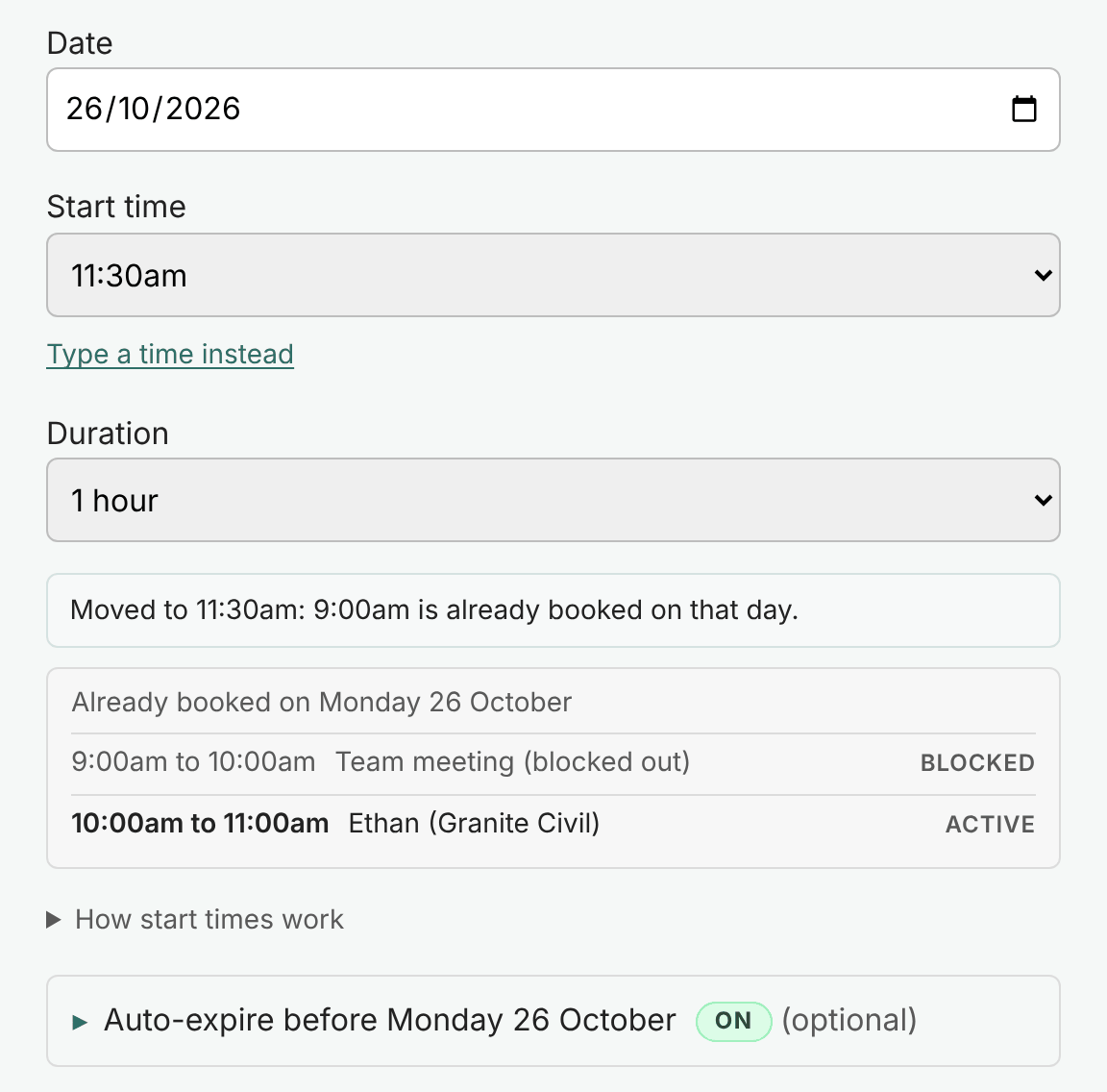
- Date: the day you are proposing.
- Start time: the list covers your business hours. Times already taken by an accepted or active booking, and busy or blocked-out times from your own calendar, are greyed out. Under the list, Chalkedin says what is already booked that day.
- Type a time instead: for any time at all. 9:10am, 11.10 AM, 1110 and 14:30 all land where you would expect. What you type is what is used; leave it empty and the list decides.
- Duration: 30 minutes to 2 hours, or No end time.
If you offer online meetings as well as in person, the page also asks In person or Online, starting on In person each time. See Online meetings.
Optional fold-downs
- Auto-expire before the proposed date: how many business days the link waits for an answer. The badge beside it shows ON, OFF or NOT POSSIBLE (when the time is too soon for it to expire first); click the badge to turn it on or off. See How long a link stays open (auto-expiry).
- Block reschedule days or times: if this customer asks for another time, anything you tick here is greyed out on their menu so they can’t choose it. Leave it all unticked for the usual choices from Settings.
Create the link
Press Create link. The form folds away and Link ready shows the message, ready to copy. See Copy the email into Outlook or Gmail and Send a link by text message.
Spotted a mistake? Press Edit at the top of the panel, change it and press Update. Clear / New starts a fresh form. See Change, cancel or remove a link.
Still stuck?
In Chalkedin, open Help and feedback from the menu under your initials (More on a phone) and tell us what happened, or email [email protected].
Checked against Chalkedin on 20 October 2026.