Copy the email into Outlook or Gmail
Once a link is made, Link ready gives you the email to paste into Outlook or Gmail, the subject, or just the link on its own.
Chalkedin doesn’t send the email for you. You paste it into your own mail, so it goes from the address your customer already knows, and their address never has to be typed into Chalkedin.
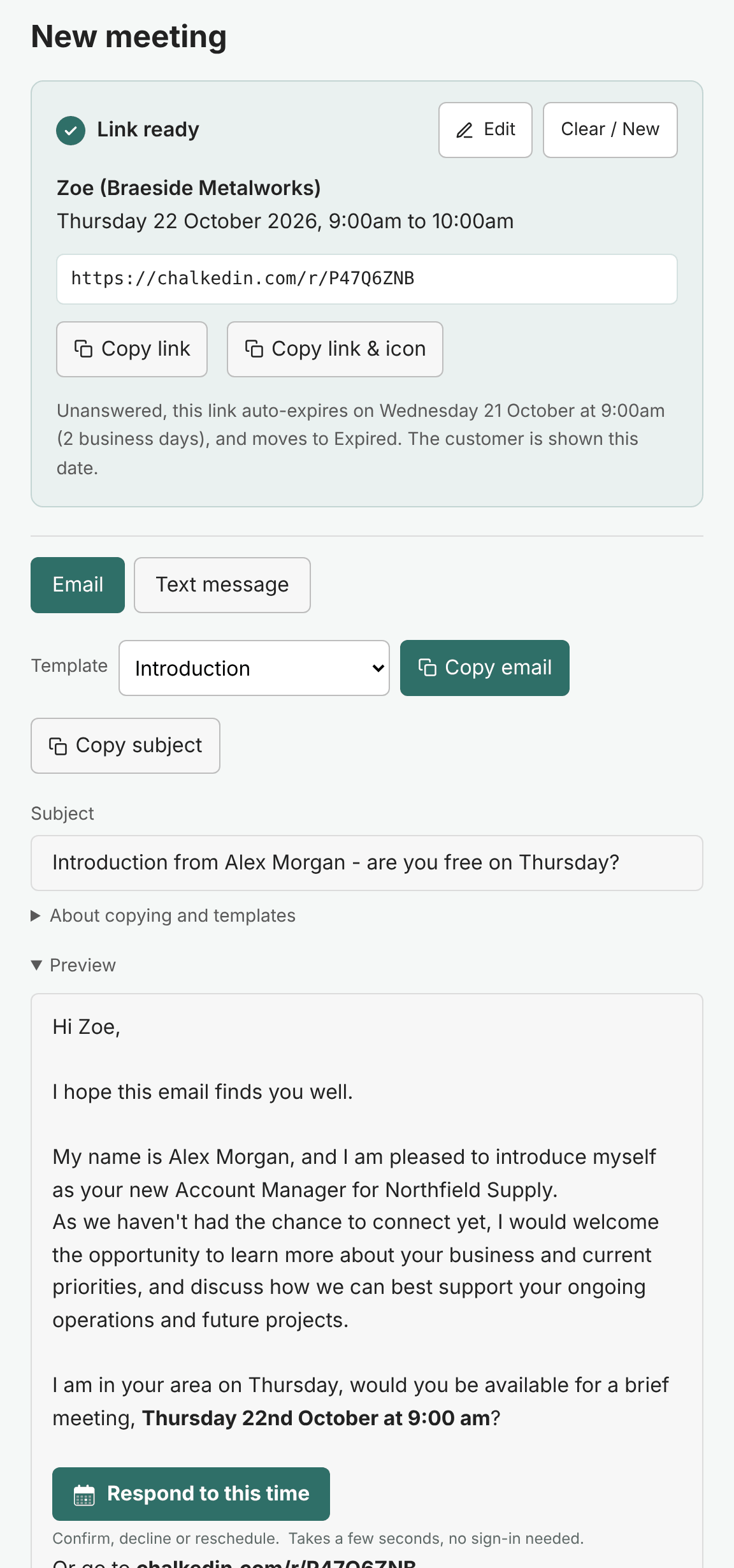
Copy the email
- Choose a Template if you want a different one. The preview changes to match, and the one you pick is waiting for you next time.
- Press Copy email.
- In Outlook or Gmail, start a new message to your customer and paste into the body (Ctrl+V, or Cmd+V on a Mac). The formatting and the Respond to this time button come with it, and your own signature is left alone.
- Press Copy subject and paste it into the subject line.
- Send it as you would any email.
Just the link
Under Just the link is the link on its own:
- Copy link: the plain address, for a chat message, a booking system or anywhere else.
- Copy link & icon: the calendar icon and the link’s words, to drop into an email you have already written. It takes its font and size from the template.
The short code
Every email also carries the link in plain text, as Or go to chalkedin.com/r/ and an eight-character code. Some company mail filters rewrite or break links; your customer can still type that address in.
Auto-expiry
If the link will expire before the proposed time, the panel says when, and your customer is shown the same date. See How long a link stays open (auto-expiry).
To change the wording or the subject line for every link, edit the template under Templates. See Templates: your emails and texts.
If the email looks wrong once pasted, see The email doesn’t look right when pasted.
Still stuck?
In Chalkedin, open Help and feedback from the menu under your initials (More on a phone) and tell us what happened, or email [email protected].
Checked against Chalkedin on 20 October 2026.