Using the Calendar
Your week or month at a glance: what is waiting, what is settled, and a click on any free time to propose it.
Moving around
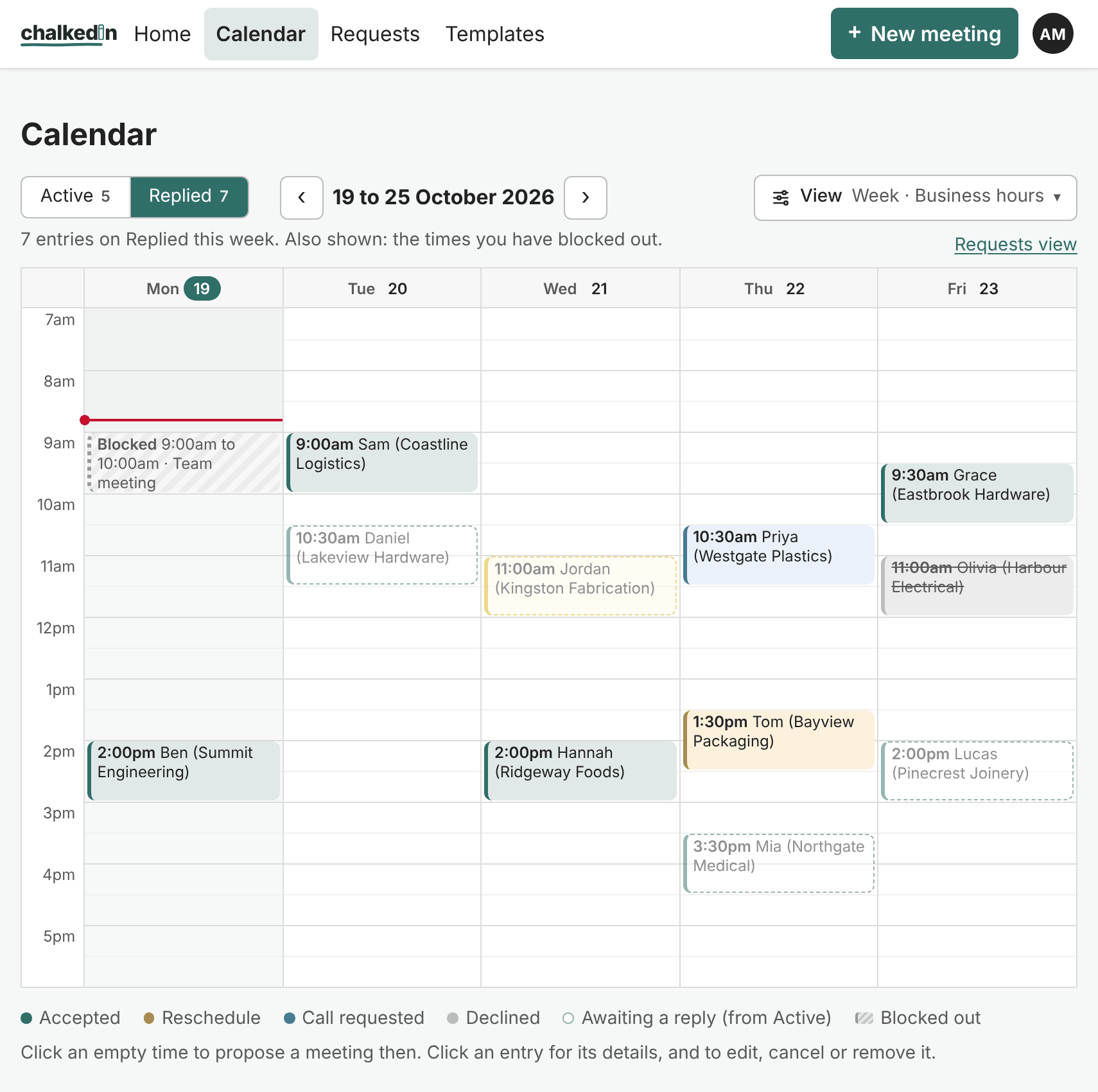
- ‹ and › move a week (or a month) at a time.
- View chooses Week or Month, and Business hours or Full. Business hours shows only your working days and hours; Full shows the whole day and every day of the week.
- Active and Replied switch between links waiting for an answer and those already answered. The other is drawn in a lighter shade, so you see both.
- Requests view (on a computer) goes to the same list as cards.
Reading it
The key at the foot names the colours: Awaiting a reply, Follow up, and Accepted (from Replied). Busy times from a calendar you have added and times you have blocked out are drawn too, so you can see what is free. See Keep busy times off the times you offer.
Propose a time from the calendar
- Click an empty time. A New meeting form opens with that day and time filled in.
- Type the name, check the details, and press Create link.
To book outside your business hours (when you need an exception), switch View to Full first.
Click an entry
An entry opens its details. From there you can edit it, cancel it, or remove it with the ×. For an Active entry, View and Remind work as they do on the card. See Follow up and send a reminder.
On a phone
The calendar works the same way, with View opening its choices from the foot of the screen.
Still stuck?
In Chalkedin, open Help and feedback from the menu under your initials (More on a phone) and tell us what happened, or email [email protected].
Checked against Chalkedin on 20 October 2026.