Requests: Active, Replied and Expired
Every link you make is on one of three lists: waiting for an answer, answered, or run out.
Requests opens on Active. On a computer the three lists are in a menu down the left, each with how many it holds; on a phone they are tiles across the top.
Active
Links sent and waiting for an answer. Each card shows when it was sent, when it was first opened, how long it has been waiting and when it expires. The badge says where it stands:
- AWAITING REPLY: sent, no answer yet.
- FOLLOW UP (amber): it has waited the business days you allow, or is close to expiring. Worth a reminder.
- REMINDED (blue): you have sent a reminder, and the count has started again.
The buttons on each card are View (the request as it went out), Remind, Copy link and More (Edit, Mark accepted, Mark declined, Cancel this). See Follow up and send a reminder, They replied by email or phone and Change, cancel or remove a link.
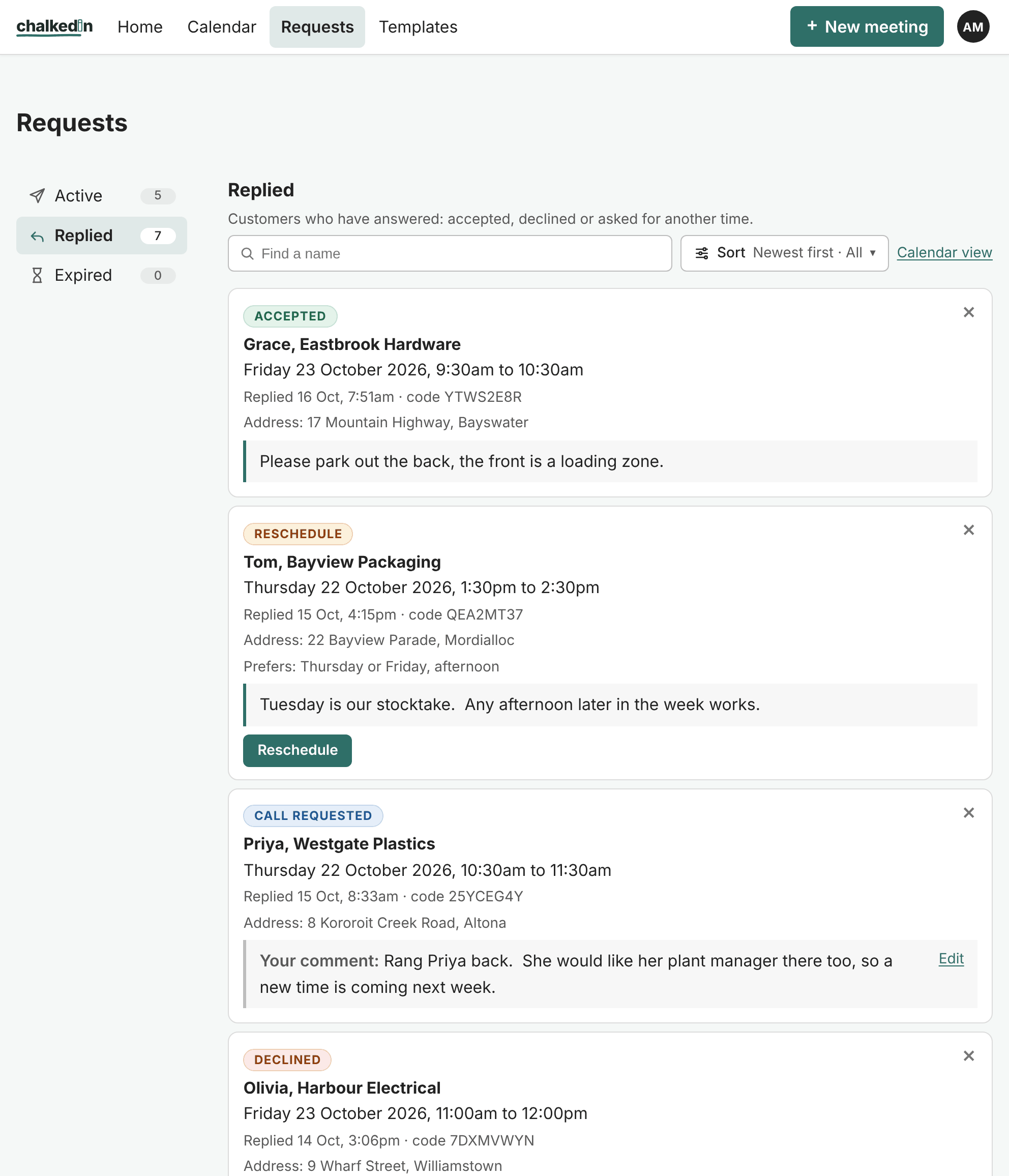
Replied
Customers who have answered, newest first. The badge says what they chose:
- ACCEPTED, with a note if they don’t need a calendar invitation.
- DECLINED.
- RESCHEDULE: they declined and said what would suit, shown as Prefers: Wednesday, morning. The Reschedule button makes the new link. See When they ask for another time.
- CALL REQUESTED: they asked you to ring. You can add a comment, such as what was agreed.
Replies you haven’t seen before are marked NEW. Their comments, the code of the link and when they replied are on the card. The × at the top right removes it from the list.
Expired
Links that ran out with no answer, saying why: the proposed time passed, or the link’s auto-expiry ran out.
Finding and sorting
- Find a name: type part of a name or company and the cards without it are hidden. It looks through the whole list.
- Sort: Newest first or Oldest first, and how far back to show. The button carries a dot while the list is cut short, so a shorter list never passes for the whole of it.
- Calendar view: the same list drawn on the calendar. See Using the Calendar.
After the purge
Once your customer’s details have been cleared (see What is kept about your customers, and for how long), the card stays with the answer, the date and the time, marked Purged, so your history and statistics are kept.
Still stuck?
In Chalkedin, open Help and feedback from the menu under your initials (More on a phone) and tell us what happened, or email [email protected].
Checked against Chalkedin on 20 October 2026.