How to propose meeting times without sending a calendar invite
Ask first, invite second. Three ways to put a time to a client and get a clear answer, before anything lands in their diary.
Ask first, invite second
The polite way to propose meeting times without sending a calendar invite is to ask first, get a clear answer, and send the invite only once they’ve said yes.
You want 30 minutes with a client next Tuesday. The quickest route looks like a calendar invite, but an invite sent before they’ve agreed lands as an appointment they never made. Below are three ways to ask first, from a plain email to a one-tap link.
Why an unasked-for calendar invite backfires
An invite decides for the other person, and that small presumption costs you replies.
- It books their diary for them. Many calendar apps place an incoming invite in the diary as tentative, so your proposal sits there before they’ve said a word.
- Saying no feels blunt. Pressing “Decline” on a supplier or adviser they like is awkward, so many people leave the invite unanswered instead.
- Counter-offers come too late. Built-in “propose a new time” buttons only help once the invite is already in their diary, and you still have to accept the change (Google’s announcement of the feature).
- It can be filtered. Invites from outside an organisation can be flagged or held by company mail filters.
- It skips the courtesy. Clients notice when they’re asked rather than told.
Option 1: propose meeting times in a plain email
A short email with one specific time, a fallback and a promise to send the invite works well for the odd one-off meeting. Copy and adapt this:
Subject30 minutes next Tuesday?
Hi Jane,
Would Tuesday at 10:00am suit for a 30-minute meeting to go through the quote? I can come to your site, or we can do it online.
If that doesn’t work, Wednesday or Thursday morning also suit me.
Once you confirm, I’ll send a calendar invitation.
Kind regards,
Sam
The catch is the replies. They come back as free text (“Tuesday’s tricky, maybe later in the week?”), you track them yourself, and nothing nudges anyone when no answer arrives.
Option 2: booking pages and polls
Booking pages and polls are great when the other person should choose, but they’re the wrong tool when you want to propose one particular time.
- Booking pages share your open slots and let the other person pick one. They suit inbound enquiries and consultations.
- Polls let a group vote across several times. They suit team meetings with five busy people.
Where they fall short: you’re in their area on Tuesday morning and want to see them then. A page of open slots hands the decision away, can feel impersonal to a valued client, and a poll is overkill for two people.
For a side-by-side look at the best-known booking tools, see how Chalkedin compares with Calendly, Acuity and Doodle.
Option 3: one link they can confirm, decline or counter
The cleanest method is a normal email from your own mailbox carrying a single button: Respond to this time. That’s how Chalkedin works.
The recipient opens the link in any browser, sees the proposed time, and answers in one tap:
- That time suits me
- That time does not suit, with the option to tick the days and mornings or afternoons that work better
- Please call me to arrange another time, offered when you have their phone number
They can add a note too, such as site access or parking. You’re emailed their answer straight away.
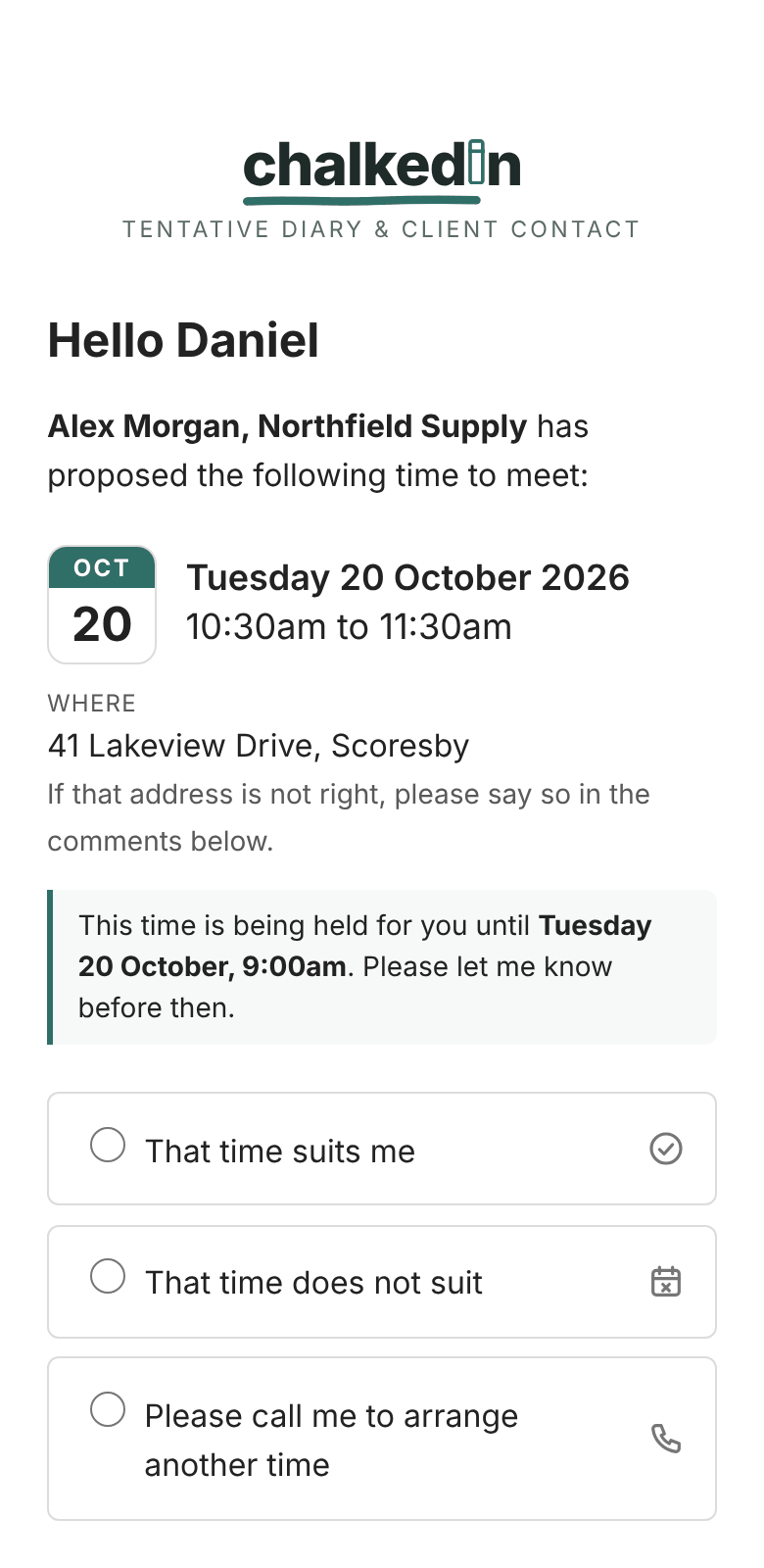
After a yes, their page says you’ll send a calendar invitation, with a No calendar invitation needed button if they don’t want one. You send it from your own calendar. Nothing lands in their diary uninvited.
It also suits clients who live on their phones: the same link can go by text message instead of email. Your client list stays in your own email, and what a client tells you is cleared on a schedule you set.
How to propose a time with Chalkedin
Proposing a time takes about a minute, and the recipient needs no account or app.
- Create a new meeting. Enter the recipient’s first name, the day and the start time. If you offer online meetings too, choose in person or online. More on the New meeting page.
- Pick a template. The one you chose last time is waiting, so your usual wording is already there.
- Copy the email and send it from your own mailbox. Outlook, Gmail or anything else works. For a text message, copy the shorter version instead. Copying the email into Outlook or Gmail.
- Wait for the answer. The request sits under Active until the recipient replies, then moves to Replied.
- Follow up if needed. When there’s no answer after your follow-up period, send a reminder from the request card with the same link. Follow up and send a reminder.
- Reschedule in one click. If they asked for another time, the Reschedule button opens a new link with the details carried over. When they ask for another time.
- Send the invite once they’ve said yes. Only if they asked for one.
Each step is covered in more detail, with screenshots, in the Chalkedin Knowledge centre.
Six tips for a faster yes
Whatever method you use, a specific, easy-to-answer request gets the quickest reply.
- Propose one time, not “when suits you?” A specific time is a yes-or-no question. An open one is homework.
- Say how long and why. “30 minutes to go through the quote” is easier to agree to than “a catch-up”.
- Make no easy to say. A clear decline today beats silence for a week.
- Set an expiry. Don’t hold a slot forever. Chalkedin’s auto-expiry closes the link before the meeting time.
- Follow up once, politely. Two business days is a sensible default.
- Use text messages where they work. Tradies and site managers often answer a text long before an email.
Try it free
Chalkedin is in beta: free for at least three months, with no card needed. Propose your next meeting the polite way. Start your free beta, or see how it works.
Questions people ask
Is it rude to send a calendar invite without asking first?
Not always. It’s normal for colleagues and standing meetings. With clients and new contacts, asking first is the more courteous default.
How do I suggest a meeting time in an email?
Offer one specific time with a fallback, say how long and why, and promise the invite once they confirm.
Can someone propose a different time without declining?
With Chalkedin, yes. Choosing “That time does not suit” lets them tick better days and mornings or afternoons, or ask you to call.
Does the recipient need an account?
No. The link opens in any browser on a phone or computer.
Does it work with Outlook and Gmail?
Yes. You send the email from your own mailbox, whatever you use.